
Completing Your Customs Declaration
To ship your package, you must first complete a customs declaration outlining its contents and value. Blackship gives you full control over the declared value of your items, allowing you to enter your preferred price.
For the item contents, we provide a convenient drop-down menu that includes Harmonized System (HS) codes. Selecting the correct HS code helps ensure smooth customs clearance once the package arrives in your destination country.
Important Compliance Notice
You are fully responsible for ensuring your customs declarations comply with all applicable laws and regulations. Please be aware of the following:
Penalties: Customs authorities may impose a financial penalty if the declared value is incorrect.
Inspection Fees: Shipping carriers may charge an inspection fee if the item description or quantity is inaccurate.
Customer Responsibility: Any penalties or fees imposed by customs or shipping carriers will be passed directly to the customer.
How to Fill Out Your Customs Declaration
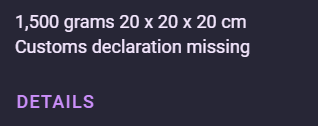
Locate the Package: In your Blackship mailbox, look for packages flagged with "Customs declaration missing." Click Details under the package you wish to declare.
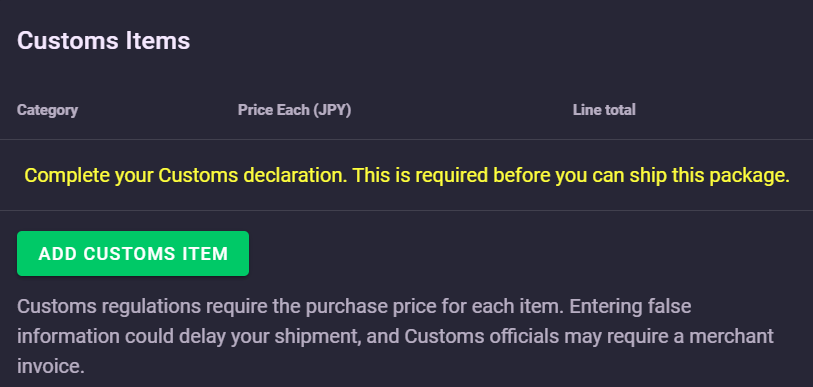
Add an Item: Scroll to the "Customs Items" section below the package photo and click Add Customs Item.
Enter Details: Select the most accurate product type from the drop-down menu, then enter the item's quantity and value. If the item is secondhand, check the Is used box.
Note: The value you input must be the price per individual item. For example, if you declare a quantity of 10 and enter a value of 10,000 yen, the total declared value will automatically calculate to 100,000 yen.
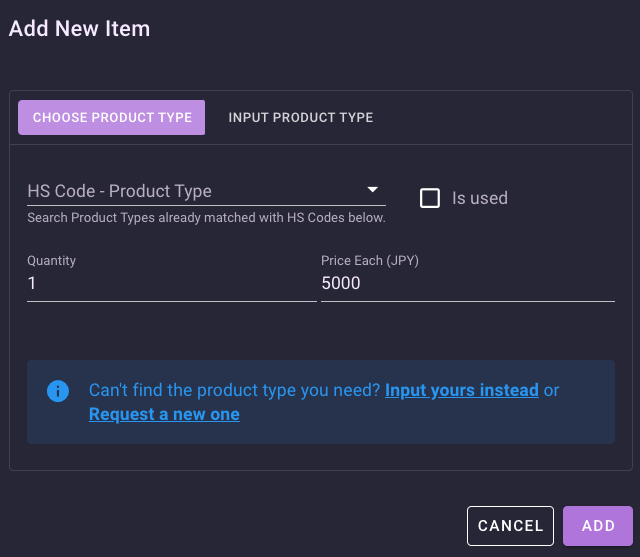
If you cannot find a suitable product type, you can request a new one to be added. However, because there is a delay while requests are reviewed for approval, we strongly recommend using this feature only if there is truly no existing match. (For more details, please see our guide: How do I request a new product type?).
Special Declarations: Depending on the product type selected, additional checkboxes may appear (e.g., “This item contains ethanol” or “This item includes a speaker”).
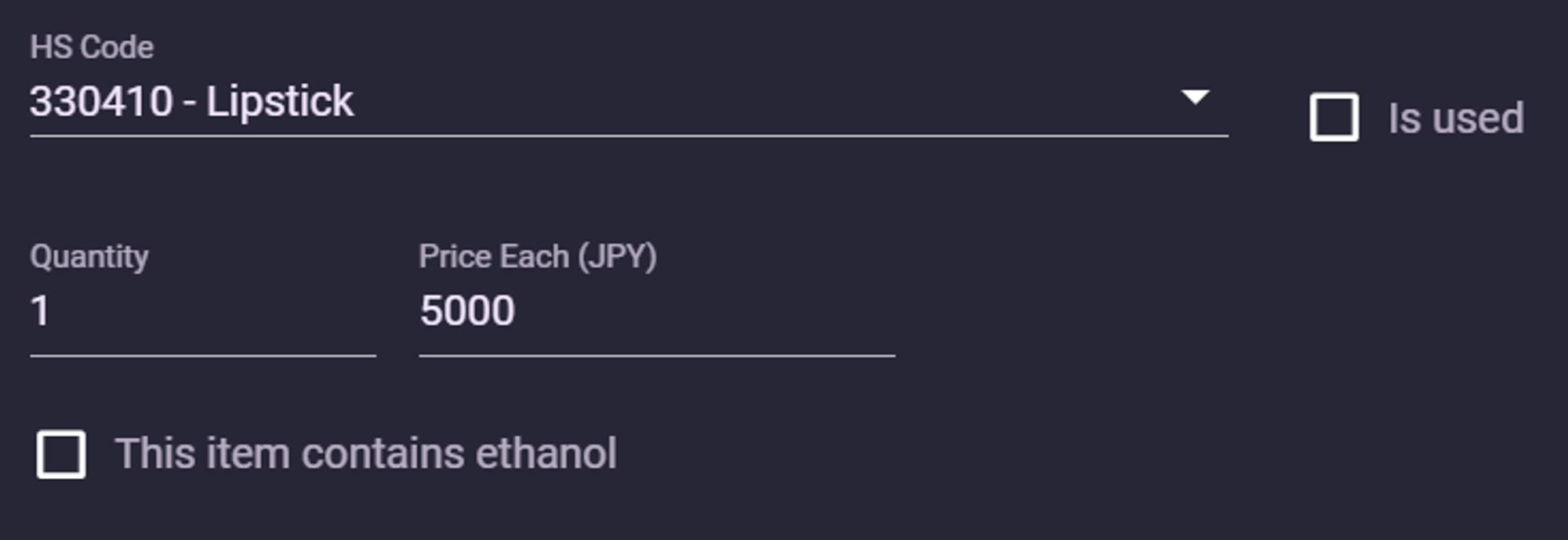
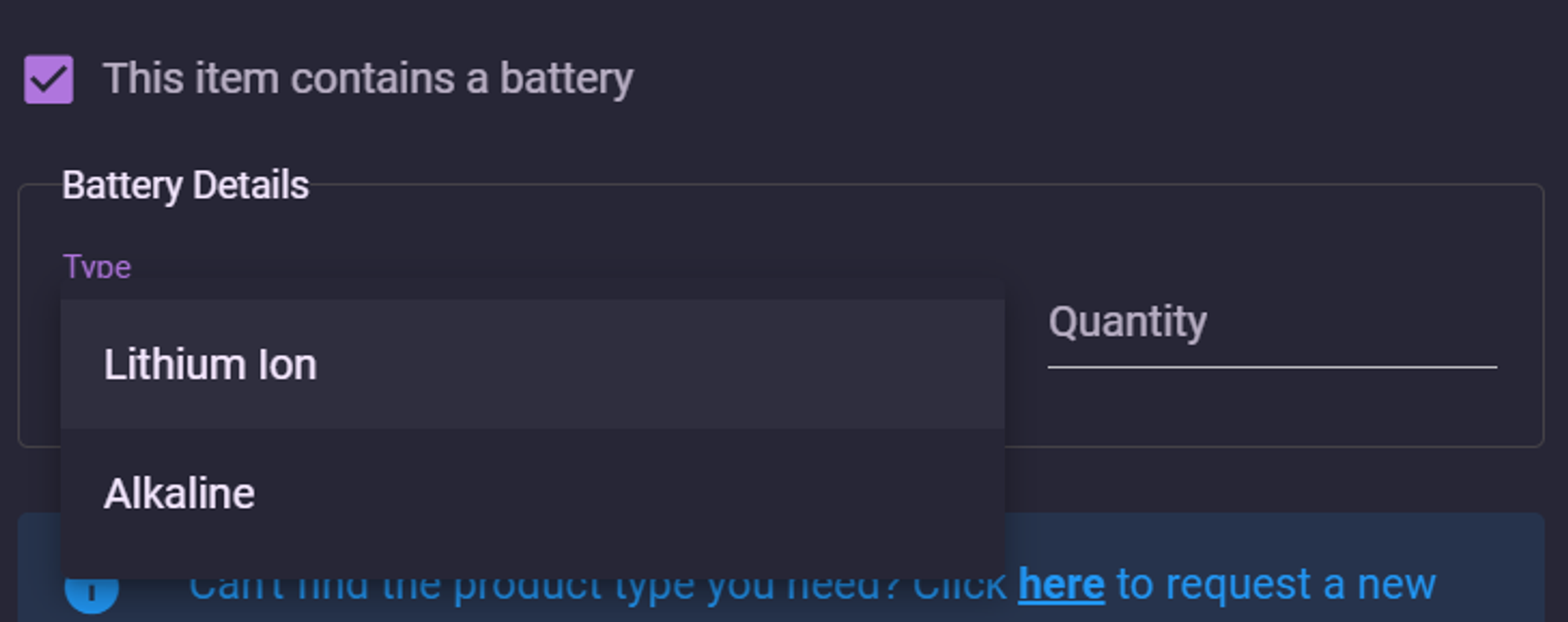
You will also be prompted for further information if your package contains batteries or alcoholic beverages. Please review these carefully and declare your items accurately to avoid shipping delays.
Understanding Customs Search Results
When searching for a customs category, each result is broken down into three distinct parts:
HS Code: A standardized 6-digit number (e.g., 490199). We use the HS6 standard.
Short Description: An overview of what the code is generally used for (e.g., “Printed books & other printed matter”). This helps you select the right category, but it is not printed on your shipping label.
Product Type: The specific description of your item (e.g., “Book,” “Book Set,” “Flyer, paper,” or “Magazine”).
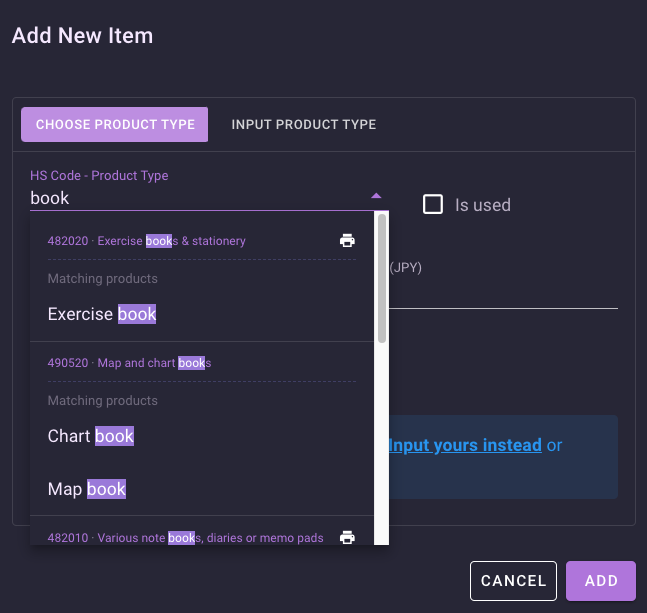
Note: Both the specific Product Type and the 6-digit HS code will be printed on your final shipping label.
Is the Shipping Cost Included in My Customs Declaration?
No. The cost of international shipping is not included in the declared value on your customs declaration (such as CN22/CN23). Only the item values you enter are sent to customs.
However, the postage amount is still available; it's printed on your shipping label.
Do you handle CPSC Requirements?
We take the necessary steps to address CPSC requirements, guided by the product details you provide and any other information available to us. That said, we're not able to guarantee a product's safety or regulatory compliance on the manufacturer's behalf.
Search Tips
When searching for codes, try using the exact term for the item as well as similar keywords to find the best match. While some specific items like "rice cooker" might yield an exact match in our system, others may be harder to find. In those cases, try broader search terms like "kitchen," "appliances," or "cooking."
For more tips on finding the perfect match, please see our guide: How do I find the correct HS code?